
Team Picker Wheel
Randomize people into groups
Team 1
Team 2
INPUTS
Grouping Method
Grouping Settings
Extras
Related Tools: Picker Wheel, Instagram Comment Picker Wheel, View All Tools
Team Picker Wheel - Randomize a List of Names into Group
- What Is Team Picker Wheel?
- How to Use the Random Team Generator?
- Set Team Names
- Preset Group Members
- Tool Customization
- File Storage - How to Save/Open/Delete File?
- Create New Team and Switch Team List
- Modify Title Section
- Full Screen View
- How to Share Team Picker Wheel?
- Specification
- Random Group Generator Use Cases
- Need a Different Random Picker?
- We Want to Hear Your Feedback
1. What Is Team Picker Wheel?
Team Picker Wheel is a random team generator from the main Picker Wheel, designed to split a list of names into random teams, groups, or pairs. It helps you to split a list of names into teams or groups. It is also known as a random group generator or can be used as a random pair generator.
By getting the list of names into the team generator, the team generator will randomize all the names you entered into equal groups. You can set the number of groups or the number of people/group you want to create, generating equally into random groups.
It has two grouping methods. The first is Host Grouping, where the host fills in all participant names, configures the grouping settings, and then generates the groups.
The second method is Self-Join Grouping. In this mode, the host predefines the grouping settings, such as the number of participants, number of groups, or number of people per group, and then generates a Join Link. Participants can open the link, spin the wheel, and receive a random group assignment.
Another unique feature of this tool is the ability to balance participants equally across groups based on gender or specific labels (for example, grades). This works when the host has assigned a gender or label to each participant after entering their names, or when the total number of male and female participants is known in Self-Join Grouping mode.
Besides, you don't need to download the groupings result manually from this group randomizer. You can save the group's result as an image or download the group's result in a CSV file for further use.
2. How to Use the Random Team Generator?
2.1. Grouping Methods
There are two grouping methods: Host Grouping and Self-Join Grouping.
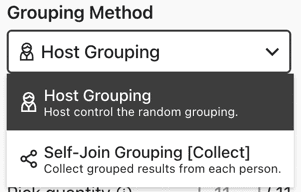
- [Host Grouping] Insert participants' names (Two methods available).
-
Insert one by one.

-
Insert a list of names (one name/line) by clicking the view/import inputs button. Import by uploading an .csv excel file is also available.

- [Self-Join Grouping] Define the total number of participants who will join, or in Gender Mode, define the number of participants for each gender.


2.2. Grouping Settings
-
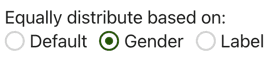
Choose distribute equally based on what kind of characteristic. You can choose Default, Gender or self-defined Label.
-
Default - Just distribute equally the list of people into the groups without considering anything else.
-
Gender - Distribute the same number of genders from the list of people into the groups.
-
Label - Distribute the same number of labels from the list of people into the groups. (Only available for host grouping)
-
-
If you choose the Host Grouping Default mode, you can also decide how many people are chosen from the given list. The selection is totally random.

-
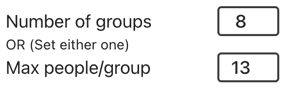
Insert the number of groups to be produced. OR, fill in the maximum number of people/group wanted. (By filling either of these fields, the system will automatically fill in another field for you based on your current name lists.)
-
Set custom team names for each group if desired. Learn more here.

2.3. Extras
-
If you enable the Pick Representatives, the Team Picker Wheel will randomly pick a representative from each group.

-
If you choose the Gender or Label mode, you can choose whether to show gender or label icon before their names when the result is replayed.

2.4. Actions
-
[Host Grouping] Press the start button or press "Ctrl + Enter" keys to randomize grouping.

-
[Self-Join Grouping] Please save the file first before creating a Join Link. Then, copy the Join Link and share it with the participants so they can spin the wheel and join a random group.


-
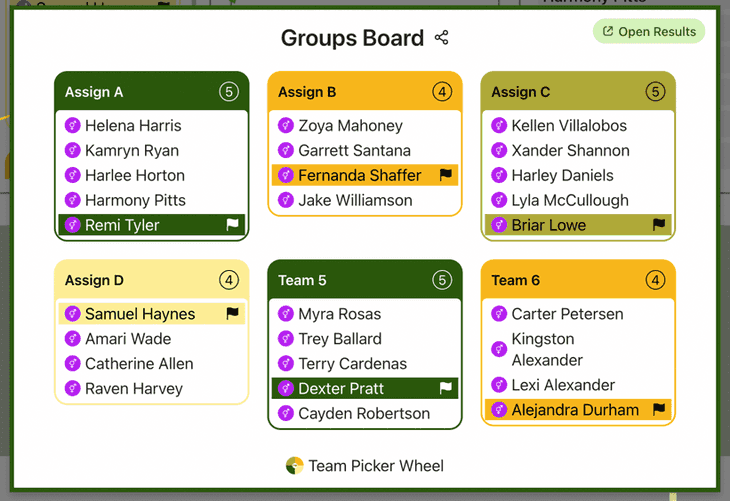
[Host Grouping] Wait for the groups board result popup.
-
[Self-Join Grouping] Open the file that was just saved, or if the file is already open, press the refresh button to get the latest results. Then, click the Groups Board button to view all grouping results.


2.5. Groups Board Result
-
Download as CSV file. You can also pick the representatives randomly.

-
You can save the result as image or share the image to public by clicking the share button.

-
You can click "Results Link" button to open the results page and share the result link with other people.

2.6. Regrouping
-
[Host Grouping] Clear all the groupings. Modify the inputs or redo the whole process again to get a new result.

-
[Self-Join Grouping] Switch and import the Self-Join members into Host Grouping if there is any misconfiguration during Self-Join setup. Then, use Host Grouping to perform random grouping for the Self-Join members.
-
Hide the Inputs section if you want. By hiding it, you can see more groups in the Result section

These are just the basic steps to use the random team picker. There are still other great features, for example, custom team names, customization, and others we will describe in the following few sections.
3. Set Team Names
In case if you want to change your team names, it is also doable.
By default, we use Team 1, Team 2, Team 3, etc., for the team naming. You can change the team names by clicking the "Set Team Names" button.

Write your desired name beside the team you want and click save.
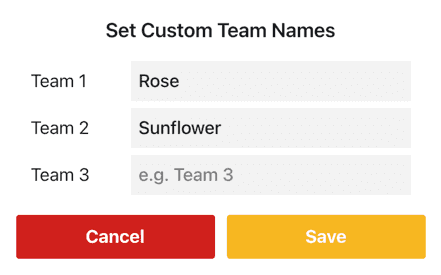
When you save the list or share the list with other people, the team names will also be included if you have assigned them.
4. Preset Group Members
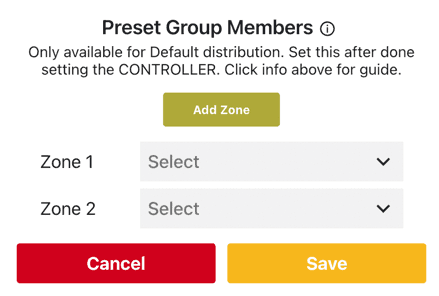
There are certain cases that you might want to group several people in same group or separate certain people from the same group.
You can go select the Preset Group Members by clicking the More button from the Inputs section.
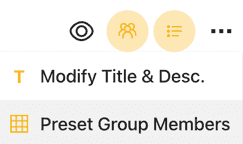
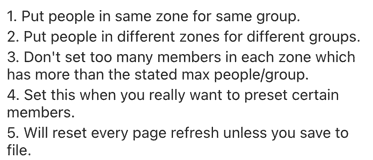
Click the info button for the instruction or see the instruction below on how to do grouping or separating.
5. Tool Customization
You can customize the team maker to suit your needs.
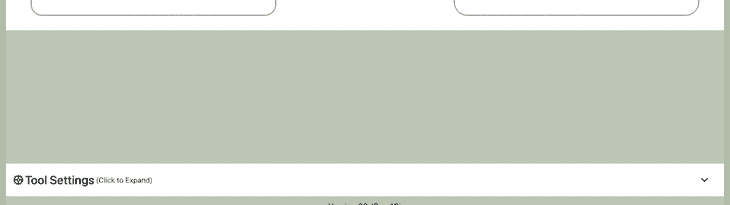
You have to do it at the Tool Settings section (below the generator section). The Tool Settings is located at this position: (Click it, then it will expand)
Below is the customization you can do:
- Spin Behavior
- Grouping Duration
- Pick Representative Duration
- Spinning Duration (For Self-Join Wheel)
- Confetti & Sound
- Disable/Enable confetti.
- Sound on/off.
- Customize starting, spinning, and ending sounds.
- Tool Colors - Change the wheel colors with several themes provided.
- Background Color - Change the background color of the whole section.
- Background Image - Add a background image at the wheel section. (Premium Users)
- Banner | Logo - Adding your own logo or banner. (Premium Users)
6. File Storage - How to Save/Open/Delete File?
By default, your lists are automatically saved to your browser's storage, so they will be ready when you return. *Please note: This data may be lost if you clear your browser history or cache.
To save more lists permanently, use Picker Wheel Cloud File Storage. This feature is available to logged-in Subscriber users. Simply click the menu button (top right) to sign up for a free account."

For Subscriber users, you have more benefits when using the file storage.
- You can save up to 15 files. (Free Users - 15 Files available, Premium Users - Up to 120)
- You can access the files with any device.
- Feeling peace of mind without worrying the data loss.
There are currently two types of file in Team Picker Wheel which are "Private List" and "Collect" types.
Private List - This is the file format you will see after saving your data list. The file is private and can only be opened and edited by you.
Collect - This is a file type created through the Self-Join Link feature. Once the collect file is created, the configuration can no longer be changed. However, you can switch the file visibility between public and private at any time as needed.
Below are the steps for how to save/open/edit/view results/delete your file after signing in to your account.
-
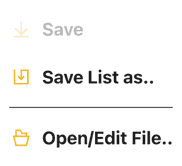
Click the File button.

-
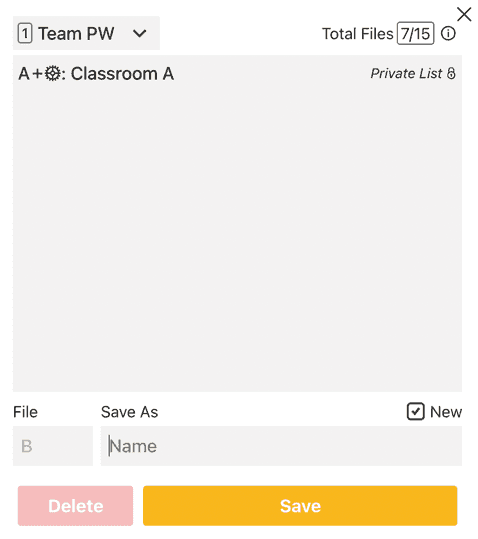
To save new data or overwrite an existing file, select 'Save List as...'. Once the file has been saved initially, the standard 'Save' button will become available for quick updates. You may enter a custom file name for easier identification, or simply rely on the File ID.
-
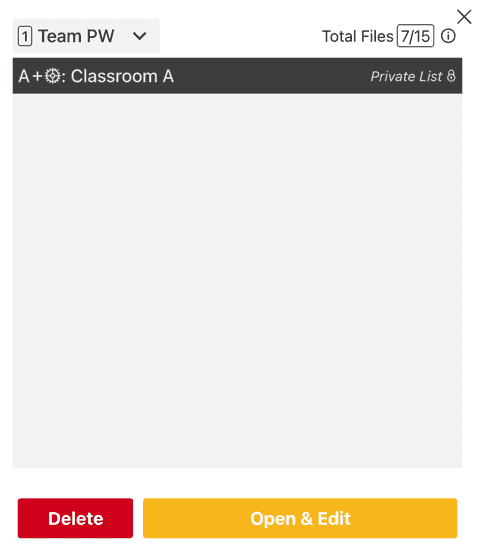
To manage your files or view results of self-join grouping, choose 'Open/Edit File...' and select the specific file you wish to open/view results, edit, or delete.
7. Create New Team and Switch Team List
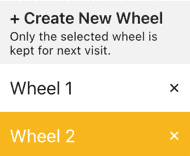
There is a switch wheel button located at the header bar (desktop version) or inside the file button menu (mobile version).

Click the "Create New Wheel" button to get a new empty default Team Picker Wheel. You can produce up to five lists and switch back and forth among them. *Please take note only the data of the current active team list is kept for the next visit. Once you refresh the page, all lists other than the active list will be lost.
8. Modify Title Section
By using the tool title, tool description and result title, your audiences know what the purpose of the generator is.
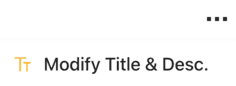
You can open title section by clicking the More Button from the Inputs section. And modify the texts at there.
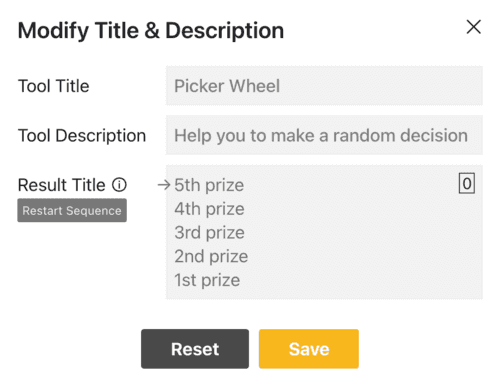
The result title supports multiple titles. The arrow points to the title that will be displayed on the next spin, cycling in order — for example, Spin 1 shows Title 1, Spin 2 shows Title 2, and after the last title, it loops back to Title 1. Click Restart Sequence to reset the arrow to Title 1.
The tool title and description will be displayed at the top corner while the result title will display when the result board is displayed.

9. Full Screen View
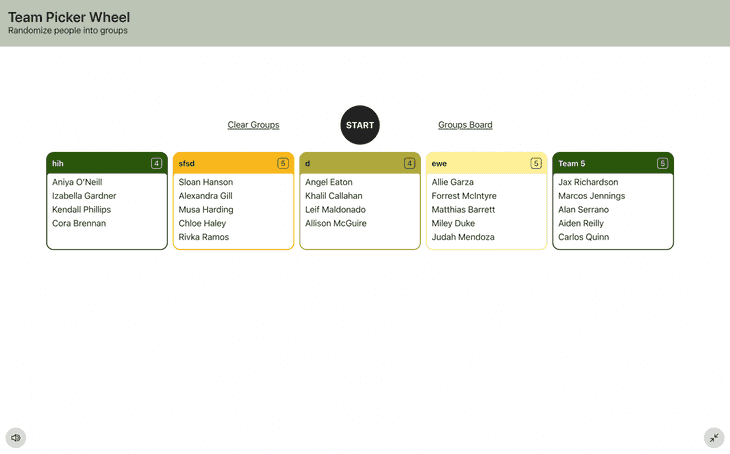
You may switch between full-screen and normal view modes by clicking the full-screen button. (Available on a desktop computer and tablet)

The Result section of random group generator becomes bigger when full-screen mode is activated, and the "Inputs" section gets hidden.
10. How to Share Team Picker Wheel?
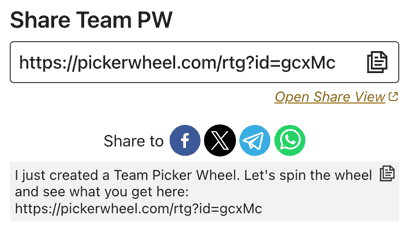
Click the share button from the Team Picker Wheel site. The system will automatically capture your inputs and title to be included in the share link.

Click the "Create Share Link" button.

A shareable link has been created. Click the Copy button or copy the address to share
11. Specification
- The random team generator is free of charge.
- There are no limits for the number of participants you can insert.
- You can produce a maximum of 100 groups.
12. Random Group Generator Use Cases
There are many ways to use the Team Randomizer through either Host Grouping or Self-Join Grouping. You can use it in classrooms, games, sports activities, or for creating random pairs.
Use Case 1 - Classroom
It can perform as group maker inside a classroom. A lecturer can distribute the students quickly, equally, and immediately into groups for assignment or discussion. Lecturer can also directly replace the team names with the task names.
Use Case 2 - Game
There are a lot of games involving grouping. Hence, participants can be grouped easily by using this random group generator. You can also enable the balance gender distribution mode for fairness.
Use Case 3 - Sport
During sport competition, you can use it to decide the participants for each of the groups.
Use Case 4 - Random Partner/Pair Generator
You can also use it as a random partner generator or random pair generator by setting the number of people/group as 2. In this way, you randomly produce several pairs of partners from a list of names.
13. Need a Different Random Picker?
Need to pick a giveaway winner instead of creating groups? Use the Instagram Comment Picker Wheel to randomly select winners from the comments on your Instagram post. For custom names, choices, or other inputs, use the main Picker Wheel to create your own random wheel.
14. We Want to Hear Your Feedback
If you have any feedback or discover any bug about our team randomizer. Please response to us as well. We may take your feedback to make the Team Picker Wheel become better.
Let's Use Team Picker Wheel to randomize your groups from now on. Happy Grouping!


Roll a die for your dice game
Try FlipSimu Dice Roller->