
Image Picker Wheel
Randomly pick a picture by wheel
INPUTS
Related Tools: Picker Wheel, Color Picker Wheel, View All Tools
Image Picker Wheel - Pick a Random Image by Spinning
- What Is the Image Picker Wheel?
- How to Use This as a Random Image Generator?
- Type of Action Modes
- Wheel Customization
- Open/Close Title Section
- File Storage - Save/Open/Delete File
- Share the Wheel / Collect User Results
- View All Results
- Generate Cert - Announce The Winner of Your Event
- Full Screen View
- Image Source - Where to get FREE image
- Use Cases
- Relationship Between Image Background And Wheel Color
- Feedback Us
- Need a Text-Based Picker Wheel?
1. What Is the Image Picker Wheel?
Image Picker Wheel is a random image generator that will decide a random image from a list of pictures you provide. The Image Picker Wheel is a specialized tool from the main Picker Wheel, designed specifically for randomly selecting images.
It is created because we know a picture is worth a thousand words. It will make the wheel more interactive with the audiences. For example, a teacher can use this Image Picker Wheel to teach students about animals by inserting all the animal photos in the wheel.
2. How to Use This as a Random Image Generator?
This image wheel will decide a random image from a list of photos you inserted.
This wheel does not function as a typical random photo generator, as it does not has all the predefined photos. It is a general type of random image generator where it supports all image formats and does the image selection from the images you provide.
-
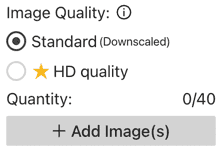
Click the "upload image(s)" button.

Hover (desktop) or tap (mobile) the "upload image(s)" button to open a popover for selecting Standard or HD upload quality (HD for Premium users only). The popover also shows the image save limit, and HD images must be saved to a file or they will disappear after page refresh.
-
Select a single image or multiple images. It accepts all the images format. e.g. png, jpg, gif, and others.
-
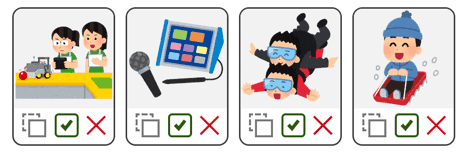
The images are inserted and displayed in inputs section. You can hide or remove an image by toggling the tick and also the close button.
-
Click the "SPIN" button or press "Ctrl + Enter" keys to start spinning the Image Picker Wheel.

-
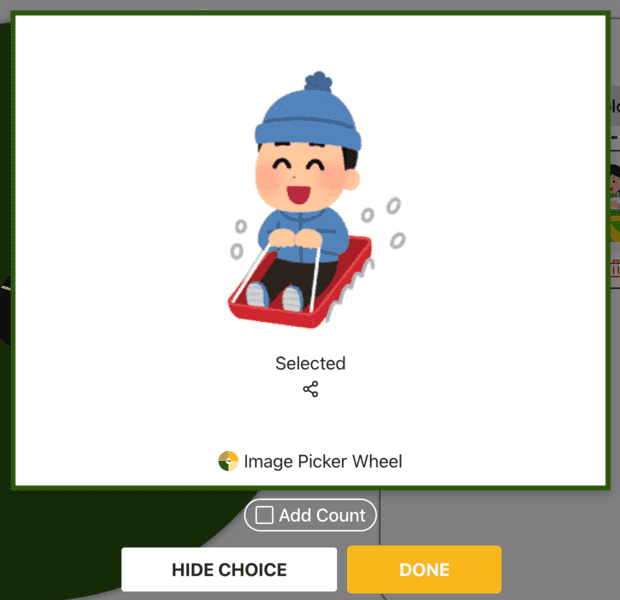
The result will be announced. If you have a Premium plan, you can click the HD result image to enlarge it up to 800px. Click again to return to the preset display size set in Tool Settings > Result (below the wheel section).
-
Choose one of the actions for the result selected. Understand the type of action modes at section 3.
-
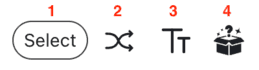
There are four function buttons in the Inputs section.
-
Select button - To select multiple inputs to duplicate, enable/disable, or delete them.
-
Shuffle button - Shuffle all the entries before going to spin the wheel.
-
Title button - To modify tool title, description, and popup result title(s). Please refer Open/Close Title Section for details.
-
Mystery button - Enable/Disable Mystery Wheel or Mystery Result.
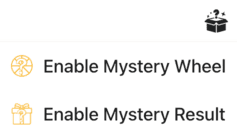
- Mystery wheel (replace inputs on wheels with “?”)
- Mystery result (result hidden until you press keyboard Enter or click to reveal)
-
-
There are two toggle buttons near the Inputs section.


-
Show/Hide Inputs - Toggle the input list on or off.
-
Show/Hide All Results - Toggle the all results list on or off.
Only one list can be displayed at a time. Hiding both lists allows everyone to focus fully on the wheel.
-
3. Type of Action Modes
Same as the Picker Wheel, there are two actions you can do when the image result is announced, with an optional Accumulation (Add Count) setting.

3.1. Normal Mode [DONE]
The image selected will still be available next round and all the available image options remain the same as the previous spin.
3.2. Elimination Mode [HIDE CHOICE]
The image selected will be temporarily eliminated. You can enable it back by toggling the image in the inputs section.
3.3. Accumulation [ADD COUNT]
The image selected will have its count increased. The count of each input selected is accumulated and carried forward to the next spin.
4. Wheel Customization
Customization is always great to fit your mood. Let’s customize your image picker wheel and insert your favorite images before spin.
How to customize?
- Spin Behavior
- Spinning speed (lvl1 to lv10).
- Spinning duration (1s to 30s).
- Enable manual stop button.
- Spin count
- Random initial angle.
- Initial Spinning
- Confetti & Sound
- Disable/Enable confetti.
- Sound on/off.
- Customize starting, spinning, and ending sounds.
- Result - Set the image display size in the result popup. (Premium Users)
- Tool Colors - Change the wheel colors with several themes provided.
- Background Color - Change the background color of the whole section.
- Background Image - Add a background image at the wheel section. (Premium Users)
- Spin Button - Customize your own spin button. (Premium Users)
- Banner | Logo - Adding your own logo or banner. (Premium Users)
*Customize wheel with your own wheel sounds, colors and background color. (Premium Users)
5. Open/Close Title Section
Do you know that you can set your own title for your wheel spinning?
Why do we need to write a title for a spin? Because:
- It can help you to specify the aim of spinning.
- Other people know your purpose of spinning when you shared a link with them.
- It provides a clear guideline when you are preparing the inputs.
- It gives you a message when the result is announced.
You can change the title by clicking the Title button from the Inputs section.

And you can insert the tool title, tool description and the result title.
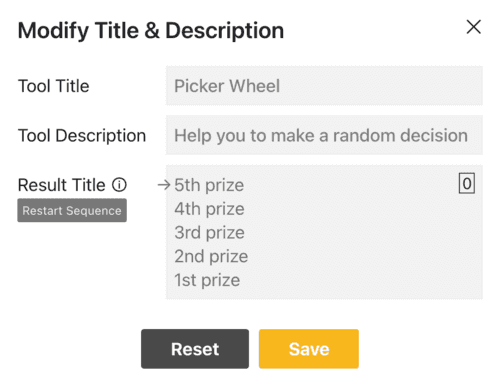
The result title supports multiple titles. The arrow points to the title that will be displayed on the next spin, cycling in order — for example, Spin 1 shows Title 1, Spin 2 shows Title 2, and after the last title, it loops back to Title 1. Click Restart Sequence to reset the arrow to Title 1.
6. File Storage - Save/Open/Delete File
Your images inputs can also be saved into online file storage as long as you’re a register user. Save your images inputs and assign a file name and use them when needed. It is convenient and saving time!
You can save several files. (Free Users - 15 Files available, Premium Users - 120)
There are three types of data you can save into the files which are:
List type - This is the file type you'll see after you save your data list. This is a private document that only you can open and edit.
Share type - A private list file will become Share and publicly viewable once a link is created. You retain full editing control, and your changes will sync instantly. To revoke public access, simply change the status back to Private.
Collect type - Create a “Collect” link to collect results from visitors.
6.1. How to Save?
-
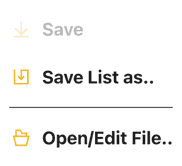
When you have finished preparing your data. Select "File" from the menu. Choose "Save List as..".

-
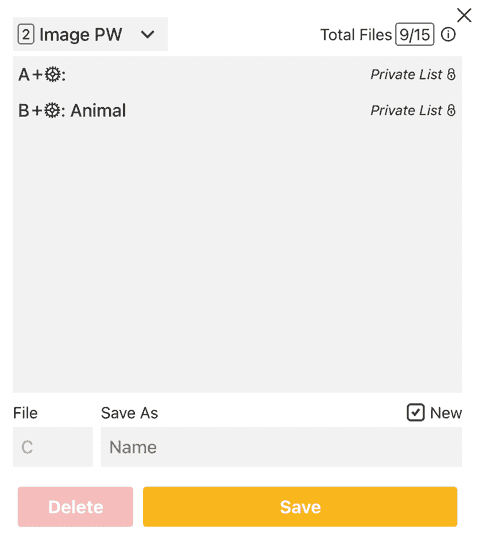
Name your new file or select an existing one to overwrite.
-
Use 'Save List as...' to create a new file or overwrite an existing one. Once a file is established, the 'Save' button becomes available, allowing you to instantly save changes to the current file.
6.2. How to Open/Delete File?
-
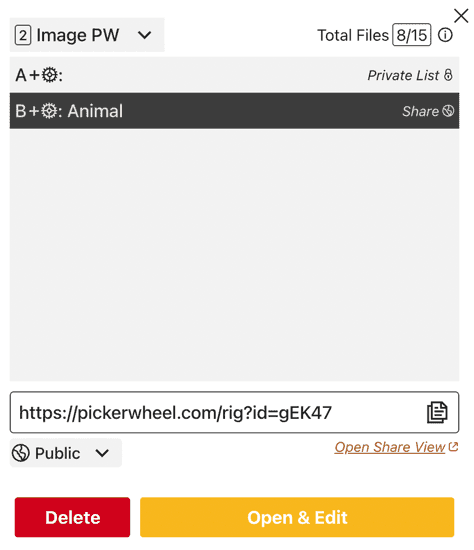
Click the File button. Choose Open/Edit File.. button.
-
To manage, select a file to open, edit, or delete.
7. Share the Wheel / Collect User Results
If you find this Image Picker Wheel useful, feel free to share it with your friends and family using the share button at the top right of the page. You can share your custom wheel and even collect spin results from participants. Whether you are sharing with friends, family, or a larger audience, the steps below will guide you through the process.

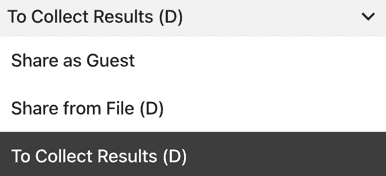
You can choose one of the share methods.
-
Share as Guest - Duplicates a fresh set of data according to the contents. Once data is created, the owner cannot alter it. There won't be any premium customization offered. If a link is inactive for 365 days or 60 days without being opened, it will be erased.
-
Share from File - Create a live shareable link. Data syncs in real-time, allowing you to update the wheel at any time. If you have a Premium plan, premium customizations are included and ads are removed for your audience. The link remains active as long as the file exists.
-
To Collect Results - This file-based sharing mode inherits the features of “Share from File” while also allowing you to collect participant results. Please note that the wheel data is locked and cannot be edited after the file is created. To view the collected results, you need to open the file. The number of results you can collect depends on your subscription plan. For example, the Free plan allows up to 10 collected results.
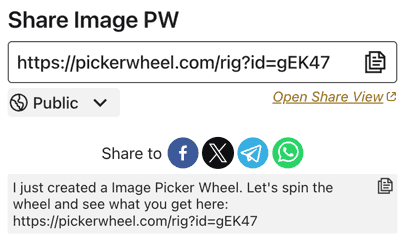
When done, click the "Create Share Link" button.

And a share link is then produced. Copy the link’s address or click the copy button to share your Image Picker Wheel with other people. Link sharing through social media is also available.
8. View All Results
You can see back all your results by clicking the “Show All Results” button that is located top-right side near to the Inputs section.
Once you click on that button, you can see your past results.
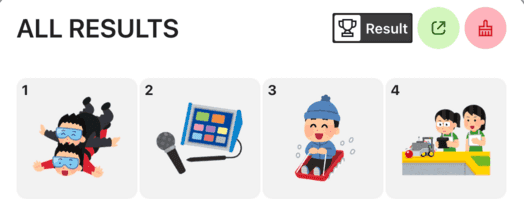
And also the scores for the results in descending order.
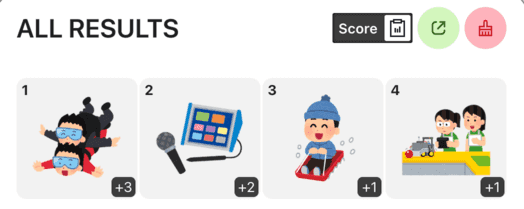
You can click the toggle button to switch between viewing results or scores (the accumulated count of results).

You can click the "Results Link" button to open the results page where you can share it with other people.

You can clear all the records by clicking the "Clear Results" button.

9. Generate Cert - Announce The Winner of Your Event
How can I show my results to my audience?
Don’t worry, you can generate results now and download/share your results in a nice and formal way.
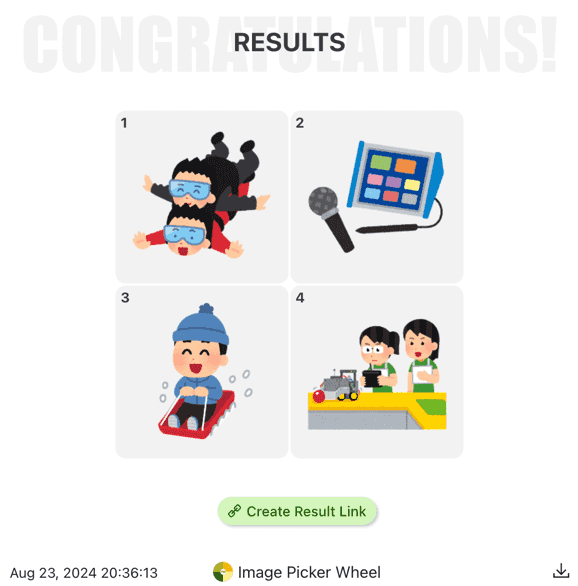
The results page generator in the All Results view.
When to use the results page:
- For your giveaway event.
- For announcing the winner in your event.
- To post as a public post on your social media. (The results page is more formal than screenshooting the result)
10. Full Screen View
Same as the other wheel, the image picker wheel can also spin in a full screen view!
The full screen view button is located at the bottom-right of the page which is near to the inputs section.

Once you’re getting ready for your title setting, inputs, and tools settings, you can press the full screen view button to enjoy your spinning.
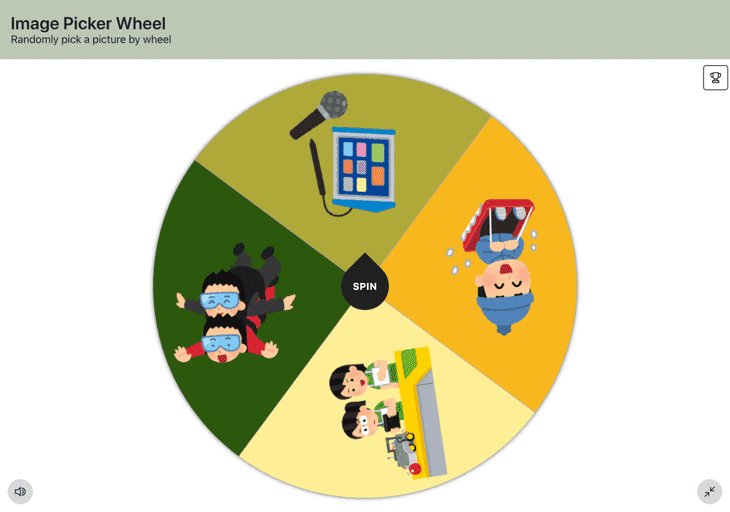
Wheel in the full screen view provides you a different and unique spinning experience.
11. Image Source - Where to get FREE image
There are many ways to get/create your images. Here are some suggestions for you.
- You can insert the images from your mobile photo gallery.
- You can get FREE images from Unsplash, Pixabay, and so on.
- A place that you can get free images for educational purposes is https://www.irasutoya.com/. All the images are free to use and download as long as you follow their policy. As a reminder, the website is in Japanese language.
- You can create images by using Canva, PPT and other software that can be downloaded as JPEG and PNG.
Image Picker Wheel does support both .jpeg and .png images.
12. Use Cases
These are the several scenarios that we think the Image Picker Wheel will help.
- A kindergarten teacher can do a more interesting lecturing in the classroom with all the kids.
- We can use it in an ice-breaking game. The loser must do the posture the same as the image selected.
- We can use it to decide what food to cook. The food among the top 3 counts will be cooked.
13. Relationship Between Image Background And Wheel Color
Some images are with background and some are without.
If you are using an image with background, eg: white background, the particular input wheel pie will follow the background color.
The transparent background image will not change the wheel colors.
Want to choose or explore colors for your wheel and images? Use the Color Picker Wheel to pick random colors, create color combinations, or extract colors directly from an image.
14. Feedback Us
We always want to improve the wheel, so that it can fit everyone's need to solve their daily problem. Please feel free to let us know your feedback.
15. Need a Text-Based Picker Wheel?
Want to use names, words, or other text-based choices instead of images? Use the main Picker Wheel to add your own text inputs and make a random decision.
Let's Use the Image Picker Wheel to Pick an Image. Happy Playing!


Flip a coin to make a decision?
Try FlipSimu Coin Flipper->