
Picker Wheel
Help you to make a random decision
INPUTS
Quick Tool Links: Team Picker Wheel, Yes No Picker Wheel, Number Picker Wheel, Letter Picker Wheel, Country Picker Wheel, State Picker Wheel, Color Picker Wheel, Image Picker Wheel, Date Picker Wheel, Instagram Comment Picker Wheel, MLB Picker Wheel, NBA Picker Wheel, NFL Picker Wheel
Picker Wheel - Spin the Wheel to Decide a Random Choice
- What Is Picker Wheel?
- How to Use This Spinner?
- Wheel Customization?
- File Storage - How to Save/Open/Delete File?
- Share Wheel / Collect User Results
- Create New Wheel and Switch Wheel
- Modify Title Section
- Enable Weight, Label, or Color
- View All Results or Scores
- Share Results
- Full Screen View
- Types of Action Modes
- Premium Personalized Plan
- Picker Wheel Family
- Save as an App in Your Device
1. What Is Picker Wheel?
A stylish wheel spinner with various functions & customization. Just enter inputs, spin the wheel and get your random result.
In some situations, our brain just can't make a decision, so why not let the wheel spinner making the small decision.
By just inserting your inputs and spin wheel, you will immediately get a random result.
The wheel spinner will give you the fairest result by using the advanced algorithm behind it.
People often use the tool for raffles, teachings, remote events, and many other places.
Sections below explain the deep-dive of the Picker Wheel features.
2. How to Use This Spinner?
Picker Wheel is a fast and easy random picker in only 3 main steps. Insert inputs, spin the wheel, and get the result. It has many features which make decision-solving fun.
Picker Wheel is very easy to use. Below are the few steps for using the spinner to pick a random choice.
2.1. Insert Inputs
Method 1: Main Mode

-
Insert text or image inputs. You can mix both of them.
-
Insert the text input one by one by clicking the + button or return key from your device.
-
Insert the image input by clicking the image input button.

-
Insert optional inputs such as weight, label, or color for each text or image input by enabling them with the checkbox.

-
-
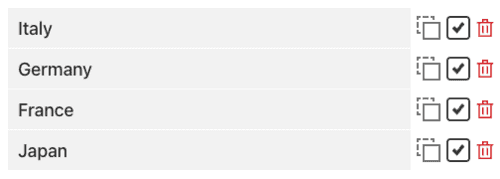
Lists of inputs are displayed. You can edit, duplicate, hide, or delete each entry. You can add both text and image in each entry. All changes are instantly reflected on the wheel spinner.
-
By default, Duplicate, Hide/Show and Delete buttons are shown.
-
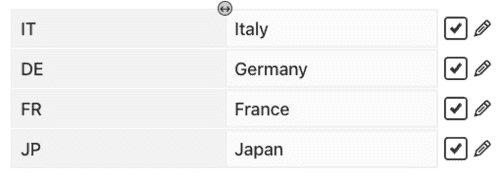
When the label is enabled, the buttons switch to Hide/Show and Edit.
-
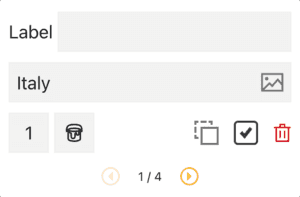
Clicking Edit button opens a pop-up, which provides another way to modify the inputs besides editing them directly in the list.
-
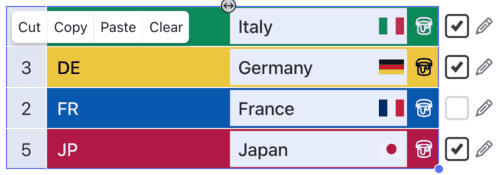
As an alternative way to edit, you can click and drag the dot at the bottom right of the textbox to highlight multiple rows or columns. Then, right-click (desktop) or tap (mobile) to access Cut, Copy, Paste, or Clear options.
-
Method 2: Text Mode

-
Insert text or image inputs. You can mix both of them.
-
Insert the text input by typing directly or by copying and pasting it from elsewhere.

-
Insert the image input by clicking the "Add Image(s)" button.
-
If you wish to insert optional inputs such as weight, label, or color for each text or image input, please switch to Main Mode.
-
-
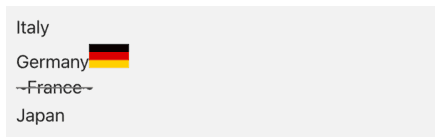
Lists of inputs are displayed. You can hide an entry by adding ~ at the start and end of the input. You can include both text and images in each entry. All changes are instantly reflected on the wheel spinner.
2.2. Spin Wheel & Get Result
-
Click the Spin button from the random wheel or press "Ctrl + Enter" keys to start spinning wheel.

-
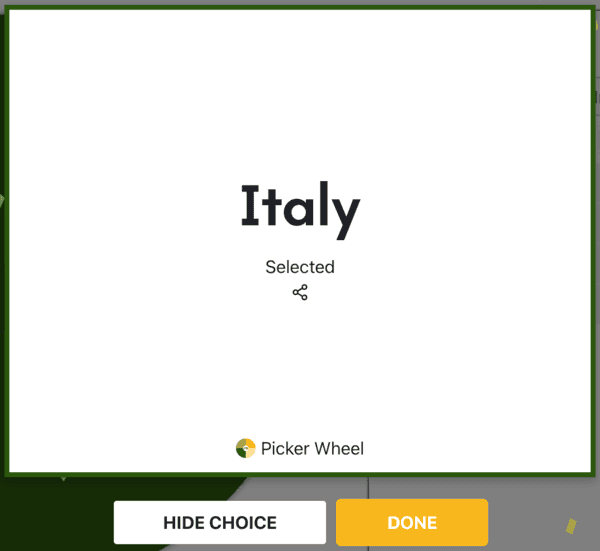
Picker Wheel announces the choice selected where its pointer points at the end after the wheel spin.
-
Choose one of the action modes for the choice selected. Or press keyboard Tab / Enter / Esc to switch / select / close actions.
2.3. Input Actions
-
There are four function buttons in the Inputs section.
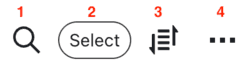
- Search button - To search inputs, labels, #hex, or #nocolor values from the input list.
- Select button - To select multiple inputs to modify their weight or color together, or to duplicate, enable/disable, or delete them.
- Sort button - Shuffle/ A to Z Sort/ Manual Sort the entries before going to spin the wheel.
-
More button - Many other functions such as changing the title, enabling mystery wheel or mystery result.
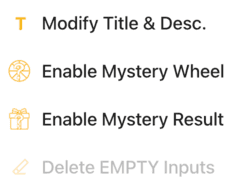
- Mystery wheel (replace inputs on wheels with “?”)
- Mystery result (result hidden until you press keyboard Enter or click to reveal)
- Delete Empty Inputs (enabled only if empty input rows exist; shows empty row count, click to delete)
-
There are two toggle buttons near the Inputs section.


-
Show/Hide Inputs - Toggle the input list on or off.
-
Show/Hide All Results - Toggle the input list on or off.
Only one list can be displayed at a time. Hiding both lists allows everyone to focus fully on the wheel.
-
Those are the basic simple steps for using the spinner wheel. Please continue to read on as there are still many great features behind which you may use.
3. Wheel Customization?
There are many customization or configuration that you can apply to the wheel to suit your needs.
You can do it at the Tool Settings section (below the wheel section). This is where the Tool Settings is located: (Click it then it will expand)
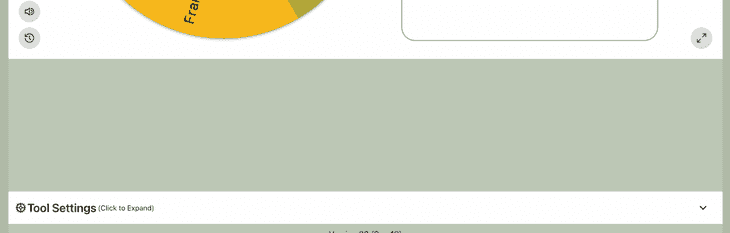
These are the settings you can configure:
- Spin Behavior
- Spinning speed (lvl1 to lv10).
- Spinning duration (1s to 30s).
- Enable manual stop button.
- Spin count
- Random initial angle.
- Initial spinning
- Confetti & Sound
- Disable/Enable confetti.
- Sound on/off.
- Customize starting, spinning, and ending sounds.
- Tool Colors - Change the wheel colors with several themes provided.
- Background Color - Change the background color of the whole section.
- Background Image - Add a background image at the wheel section. (Premium Users)
- Spin Button - Customize your own spin button. (Premium Users)
- Banner | Logo - Adding your own logo or banner. (Premium Users)
*Customize wheel with your own wheel sounds, colors and background color. (Premium Users)
4. File Storage - How to Save/Open/Delete File?
By default, your progress is autosaved to your browser's local storage. *Be aware that clearing your browser history or cache will erase this data.
For permanent storage and to manage multiple lists of random wheel, please sign up for a free Subscriber account. You can then save your files securely to the Picker Wheel cloud. Simply click the menu button to create a free account.

For the logged-in Subscriber users, you have more benefits for the file storage.
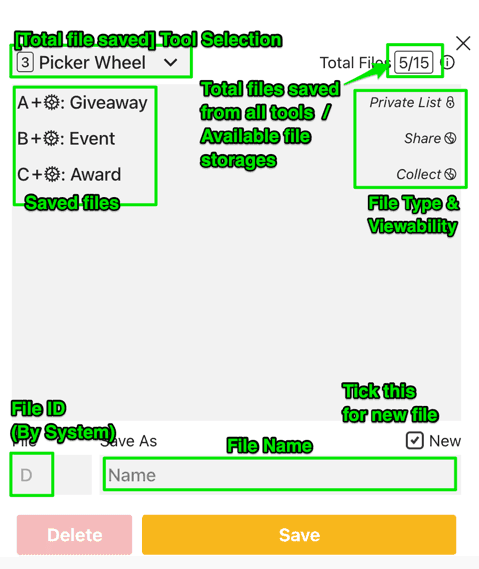
- You can save up to 15 files. (Free Users - 15 Files available, Premium Users - Up to 120)
- You can access your file with any device anywhere anytime.
- Feeling peace of mind without worrying the data loss.
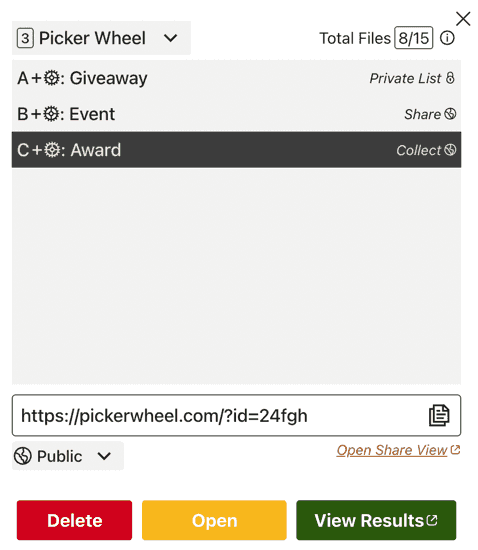
There are currently three types of file in Picker Wheel which are "Private List", "Share" and "Collect" types.
Private List - This is the file type you will see after saving your list of data. This is private and only you can open and edit.
Share - Once you create a share link from any private List file, the file now becomes a Share file, it is now public and viewable by others, but only you have permission to edit. Your changes to the file will be instantly reflected in the share link. You may switch the visibility from public to private to restrict access.
Collect - Create a 'Collect' link to gather visitor results. Note that this locks the file from further editing. You may also switch the file between public and private visibility as needed.
4.1. How to Save?
-
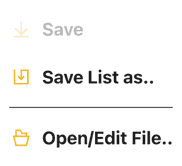
Click the "File" button. Choose "Save List as..".

-
Enter a file name and click Save, or select an existing file to replace or delete.
-
Use 'Save List As...' to create a new file or overwrite an existing one. Once a file is created, the 'Save' button becomes available, allowing you to instantly update the current file.
4.2. How to Open/Delete File?
-
Click the File button. Choose Open/Edit File.. button.
-
Here you can find buttons to open, edit, or delete your file, as well as view the dashboard of collected results.
5. Share Wheel / Collect User Results
Share your custom wheel and collect spin results! Whether for friends, family, or a larger audience, the steps below will show you how.
Click the share button from the Picker Wheel site (at the top right).

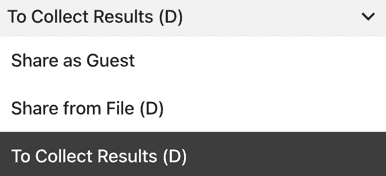
There are three types of share method, you will see:
-
Share as Guest - Duplicates your wheel data to generate a share link. The wheel data is non-editable and all the premium customization are excluded. The link expires if unopened for 60 days, or after 365 days of inactivity.
-
Share from File - Make your file shareable with a live link. You can edit the wheel data anytime, and changes will sync in real-time. This link remains active as long as the file exists. If you have a Premium plan, customizations are included and ads are hidden for visitors.
-
To Collect Results - This file-based sharing mode inherits 'Share from File' features but adds the ability to collect participant results. Please note that wheel data is locked and cannot be edited after creation. You will have a dashboard to view the collected results. The number of results you can collect depends on your plan. For example, the Free plan is limited to 10 results.
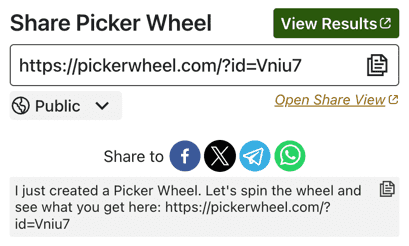
Once done setup, click the "Create Share Link" button.

You will see a link is produced. You may copy the link’s address or click the copy button to share the Picker Wheel with other people. You may also share it directly through Facebook / X / Telegram / WhatsApp.
6. Create New Wheel and Switch Wheel
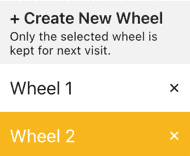
There is a switch wheel button located at the header bar (desktop version) or inside the file button menu (mobile version).
Click the "Create New Wheel" button to get a new empty default Picker Wheel. You can produce up to five wheels and switch back and forth among them. For example, you can design a wheel of names, a wheel of animals etc. *Please keep in mind that only the data from the currently active wheel is saved for the next visit. All wheels other than the active wheel will be lost when you refresh the page.
7. Modify Title Section
By writing your own tool title, tool description and result title your audiences know what the purpose of your spin wheel is.
You can change the title by clicking the More Button from the Inputs section.
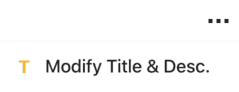
And write down the texts for them.
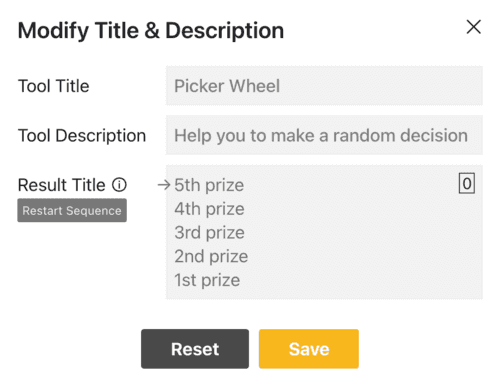
The result title supports multiple titles. The arrow points to the title that will be displayed on the next spin, cycling in order — for example, Spin 1 shows Title 1, Spin 2 shows Title 2, and after the last title, it loops back to Title 1. Click Restart Sequence to reset the arrow to Title 1.
The tool title and description will be displayed at the top corner while the result title will display when the result is announced as shown below.


8. Enable Weight, Label, or Color
Enable or disable the weight, label, or color on the wheel by ticking or unticking the checkbox, and use the eye icon to show or hide the item in the input list without affecting the wheel.

8.1. Weight
By default, every input is distributed equally in portion size in a randomizer wheel. However, you can change this behavior by enabling the weight.
You have one more weight field that can fill in for each of your inputs by enabling that.
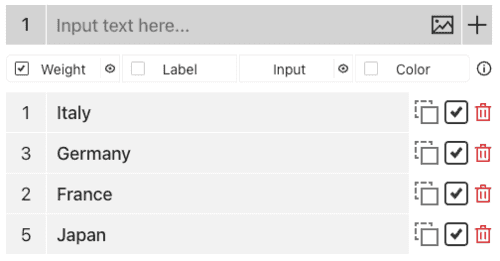
All the weights assigned will be sum together and each input's portion size is drawn based on its weight out of the total weights.
8.2. Label
By default, text or image inputs are displayed on the randomizer wheel. However, you can enable the label to replace the input on the wheel.
You have one more label field that can fill in for each of your inputs by enabling that. You can use the Resize button between the columns to drag and adjust the width, making the label or input easier to view.
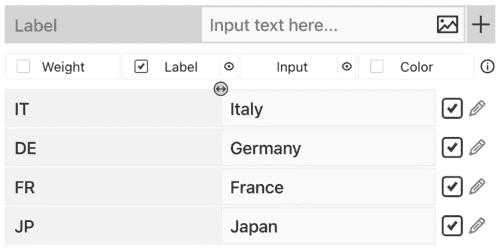
After spinning the wheel, the pop-up result will show the label as a small title above the corresponding text or image input.
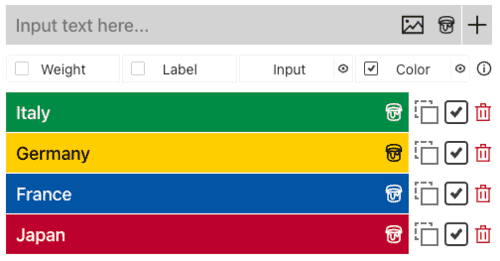
8.3. Color
By default, each pie on the randomizer wheel is filled with the colors set in the tool settings. However, you can change the pie colors by enabling the color option.
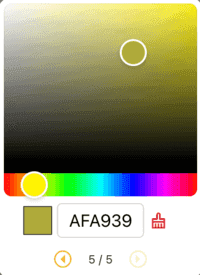
You have a Color button that opens a color picker, allowing you to choose a color or enter a hex code directly for any of your inputs by enabling it.
9. View All Results or Scores
After spinning wheel, in order to review all your result or see all the scores (accumulated count of all results), you can click the "Show All Results" button.
It will show you all the results that had let the wheel decide since the first wheel spin of your current visit.
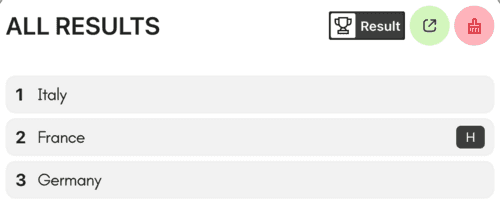
You can also see the summary of the scores from your current wheel input in descending order.
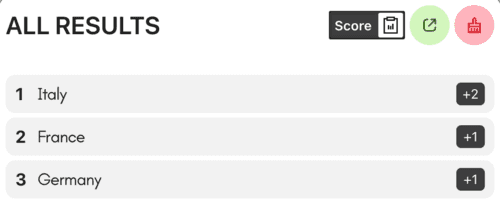
You can click the "Results Link" button to open the results page where you can share it with other people.

You can clear all the records by clicking the "Clear Results" button.

10. Share Results
There are two kinds of result you can share. One is single result and another one is all results.
-
Single Result. The only way to share your single result is at the moment the result is announced. Click the share icon.

-
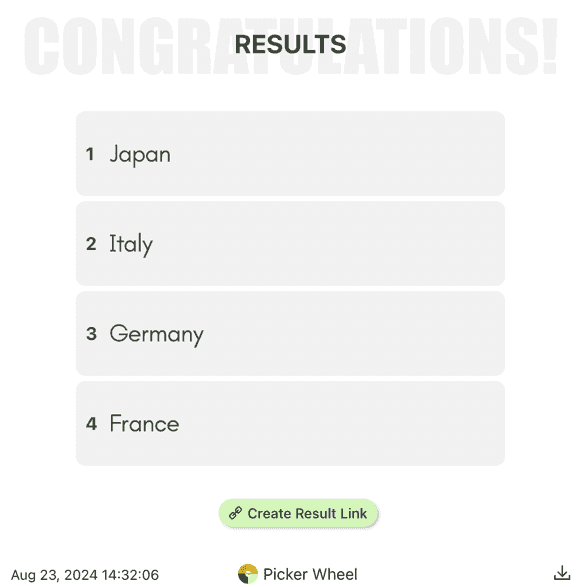
All Results. After you open results page, you can create a result link to share with other people. You can also download the results image at the result page.
11. Full Screen View
You can also enter or exit the full-screen view by clicking the full-screen button. (Available in a tablet and desktop device only)

By entering full-screen view, it will enlarge the wheel picker size and the inputs section will be hidden.
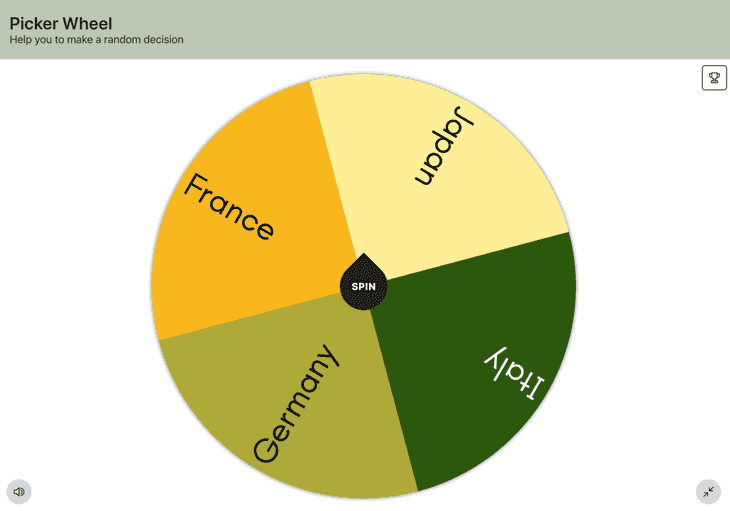
You can still see your results or scores from the "Show All Results" button.
12. Types of Action Modes
You can insert whatever inputs which you wish to let the random wheel generator decide for you. There are two modes that the users can choose to make the right choice.

12.1. Normal Mode [DONE]
This is the default random decision wheel mode. When you click the 'DONE' button after the wheel announces a result, the wheel will just resume. The selected result will remain and can be chosen again next time.
Use Case 1
This can be used as a random name Picker Wheel in an event where its behavior is like a digital prize wheel. It will decide 1 winner among the list of candidates’ names from a contest after spinning the wheel. You can also use the wheel together with a countdown timer to carry out more interactive activities.
12.2. Elimination Mode [HIDE CHOICE]
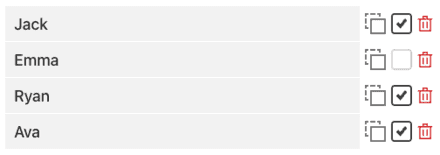
It is a wheel picker that picks a random name alternately by "HIDE CHOICE" the inputs one by one. The result will be disabled from the wheel in the next round.
Use Case 2
This wheel of names can be used in a classroom when the teacher can call the students out to solve some questions one by one without repeating the same name.
13. Premium Personalized Plan
Are you looking for
- ad-free solution?
- more file storage?
- more customizations?
- own logo/banner placement?
- embed wheel customization?
- support us?
You may consider to upgrade to the Personalized plan.
14. Picker Wheel Family
Other than the main Picker Wheel, there are several specialized tools of Picker Wheel created as well.
-
If you are looking for a tool to do a random grouping, please check out our Random Team Generator.
-
Or, if you need a decision which is only about yes or no, please check out our Yes or No Wheel also.
-
Or, if you specifically want to have random number output, you can also explore our Random Number Generator as well.
-
Or, if you want to get a random letter output, we have the Random Letter Generator for you.
-
Or, we have the Random Country Generator available if you wish to acquire an output of a random country.
-
Or, we also have the Random Date Generator if you want to choose a random date output.
-
Or, if you want an image-based Picker Wheel, we have created the Random Image Generator.
-
Or, you can use our Random Color Generator to pick a random color, create color palettes, or even extract colors from images.
-
Or, we have the Random NFL Team Generator, which will pick a random NFL team from a pool of 32 teams.
-
Or, we have the Random NBA Team Generator, designed to randomly choose a NBA team from a total of 30 teams.
-
Or, do you want to do Instagram giveaways campaign based on the comments? We have created the Instagram Comment Picker.
-
Other than these on-site tools, we also make an embedded Picker Wheel that you can embed on your page. You may refer to embed tutorial page to learn how to do that.
15. Save as an App in Your Device
15.1. Desktop App
Open the Picker Wheel using Chrome. Click the Settings -> Save and Share -> Install page as app...

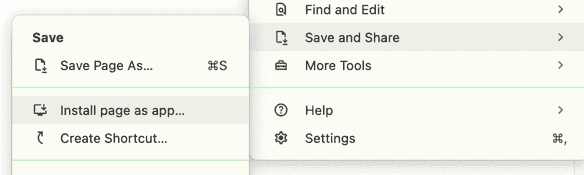
It is now installed in your desktop or laptop. You can access it anytime without remember the URL and going through the browser.
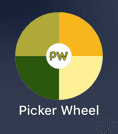
15.2. Smartphone App
Open the Picker Wheel site using Safari (iOS) or Chrome (Android). Click the share button (iOS) or Settings button (Android) and click Add to Home Screen selection.
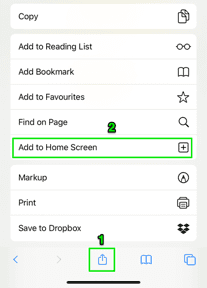
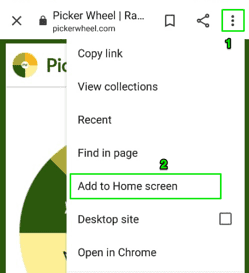
It is now installed on your device.
Let's Spin the Wheel Now - Happy Spinning!


Flip a coin to make a decision?
Try FlipSimu Coin Flipper->